This wizard step will help you to identify when to press return at Rescatux boot.
Booting with CDROM or with USB built with dd
When you boot in Rescatux the Rescatux autodetect option is selected by default. Just press return. If you don’t press return it will be autoselected in 60 seconds time.
Booting USB thanks to YUMI
When you boot thanks to YUMI by default is going to boot into your first hard disk.
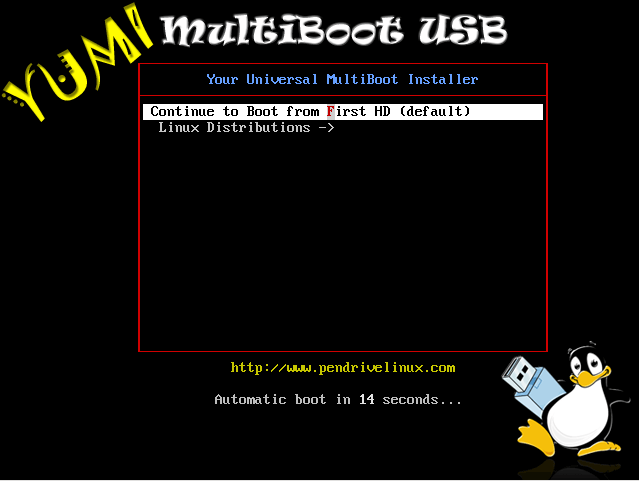
You have to select Linux Distributions by using down arrow key and then return key.
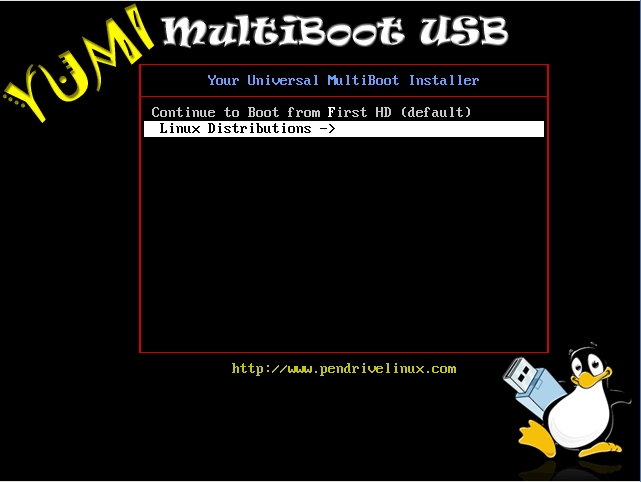
Then you get into Linux Distribution screens.
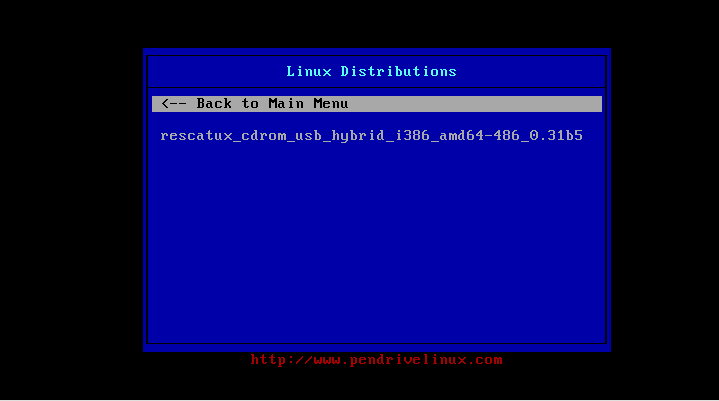
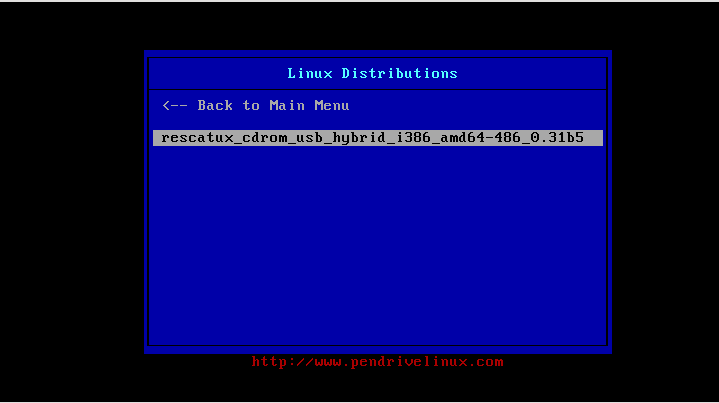
Use again the down arrow key and then return key to select Rescatux entry.
Finally you get into Rescatux ISOlinux screen.
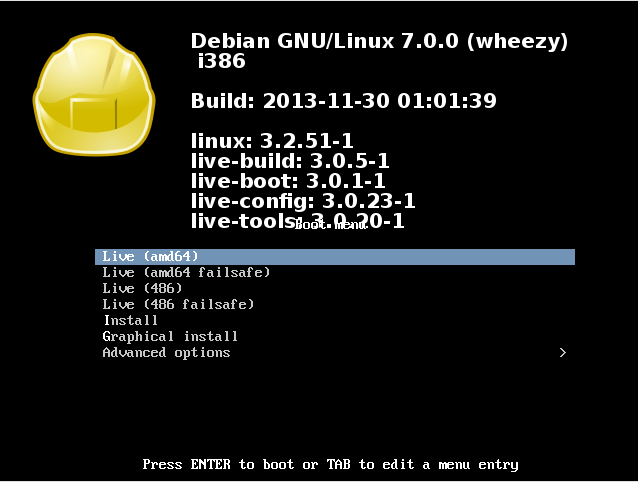
Here you are advised to use default entry: Live (amd64). If you ever get a message like:
This kernel requires an x86-64 CPU, but only detected an i686 CPU. Unable to boot - please use a kernel appropiate for your CPU.
then repeat all the steps in order to boot into your device but in this screen select: Live (486) entry instead.
Once you have selected your entry you have finished this wizard step.